สวัสดีครับ วันนี้จะมาสอนเขียนแอพแอนดรอยส์ โดยจะพูดในเรื่องของ TextWatcher กันครับ
TextWatcher คืออะไร แล้วมีประโยชน์อะไร ?
TextWatcher มันเป็น interface ที่ Android นั้นอำนวยความสะดวกมาให้เรา มันทำงานอย่างไงละ มันก็ทำงานเมื่อมีเหตุการณ์เกิดขึ้นกับตัว EditText (ตัวอักษรมีการเปลี่ยนแปลง) พูดง่ายๆก็คือ เมื่อผู้ใช้ทำงานป้อนข้อมูลลงไปทุกครั้ง ไอ้เจ้า TextWatcher มันก็จะทำงาน
เมื่อรู้แล้วว่ามันคืออะไร ทำอะไรได้ ต่อไปมาดูประโยชน์ของเจ้า TextWatcher กันซะ TextWatcher มันมีประโยชน์ เมื่อผู้อ่าน อยากจะดักจับข้อมูลที่ยูเซอร์ป้อนมา เช่น
- จำกัดจำนวนที่สามารถใส่ค่าได้ใน EditText (แต่ว่าจริงๆมันก็มี method setMaxLength แล้วนะเออ)
- นับจำนวนตัวอักษร แล้วนำไป คำนวณหรืออะไรก็แล้วแต่
ขั้นตอนการใช้งาน TextWatcher
มาดูขั้นตอนการใช้งาน TextWatcher กันเลยดีกว่า การใช้งานไม่ยุ่งยาก เพียงแค่เรียก method addTextChangedListener() ของ EditText
โดยจะ implement แบบนี้ (Anonymous)
editText.addTextChangedListener(new TextWatcher() {...});หรือจะแบบนี้ก็แล้วแต่สะดวก
editText.addTextChangedListener(myTextWatcher);
public TextWatcher myTextWatcher = new TextWatcher() {
    @Override    public void onTextChanged(CharSequence s, int start, int before, int count) {
    }
    @Override    public void beforeTextChanged(CharSequence s, int start, int count,            int after) {
    }
    @Override    public void afterTextChanged(Editable s) {
    }};
ตัวอย่างการใช้งาน
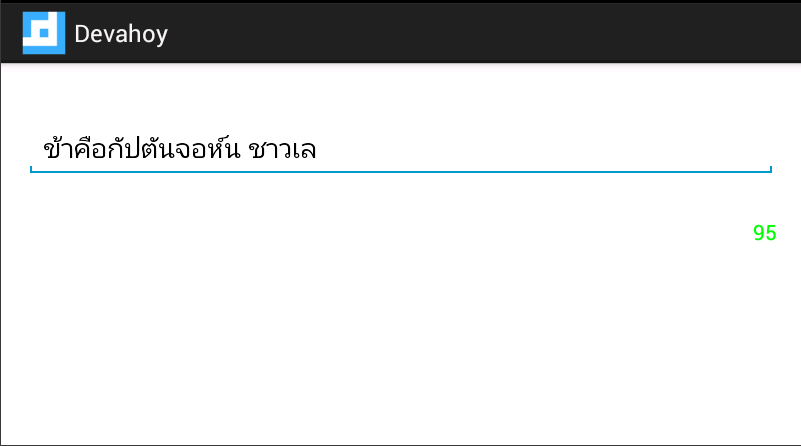
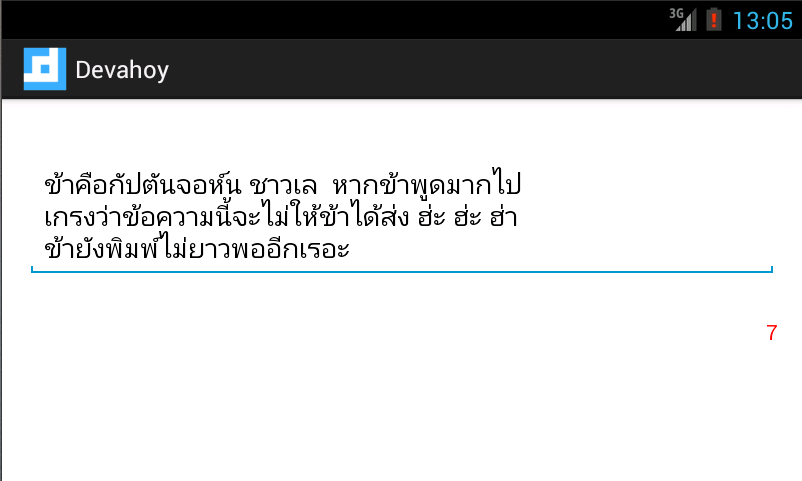
ตัวอย่างแอพนี้จะใช้ TextWatcher มาช่วย ให้นับจำนวนตัวอักษรที่สามารถพิมพ์ได้ (ลองนึกถึง tweet ของ Tweeter ดูครับ ว่าจำกัดจำนวนตัวอักษร แอพนี้ก็ลักษณะคล้ายๆกัน) เมื่อถึงกำหนด หรือว่าใกล้ครบลิมิตแล้ว ก็ให้ตัวอักษรทำการเปลี่ยนสีกลายเป็นสีแดง
ในส่วน Layout มีแค่ EditText สำหรับป้อนตัวอักษร และ TextView ไว้สำหรับนับตัวอักษรที่พิมพ์ลงไป เท่านั้นเอง
ไฟล์ activity_main.xml
<RelativeLayout xmlns:android="http://schemas.android.com/apk/res/android"    xmlns:tools="http://schemas.android.com/tools"    android:layout_width="match_parent"    android:layout_height="match_parent"    android:paddingBottom="@dimen/activity_vertical_margin"    android:paddingLeft="@dimen/activity_horizontal_margin"    android:paddingRight="@dimen/activity_horizontal_margin"    android:paddingTop="@dimen/activity_vertical_margin">
    <EditText        android:id="@+id/editMessage"        android:layout_width="match_parent"        android:layout_height="wrap_content"        android:layout_alignParentLeft="true"        android:layout_alignParentTop="true"        android:layout_marginTop="21dp"        android:ems="10"        android:gravity="top"        android:maxLength="120"        android:hint="put some word.."        android:inputType="textMultiLine" />
    <TextView        android:id="@+id/textCount"        android:layout_width="wrap_content"        android:layout_height="wrap_content"        android:layout_alignRight="@+id/editMessage"        android:textColor="#00ff00"        android:layout_below="@+id/editMessage"        android:layout_marginTop="26dp"        android:text="120" />
</RelativeLayout>
ส่วนฝั่งโค๊ด MainActivity.java ก็ทำการนับตัวอักษรของ EditText ทุกครั้ง ที่มีการพิมพ์ข้อความลงไป แล้วเช็ค ว่าตัวอักษรที่จะพิมพ์ได้ ถึงลิมิตหรือยัง ถ้าเหลืออีกแค่ 20ตัว จะเปลี่ยนสี TextView เป็นสีแดง
ดูตัวอย่างตามนี้เลย
package com.devahoy.tutorial;
import android.app.Activity;import android.graphics.Color;import android.os.Bundle;import android.text.Editable;import android.text.TextWatcher;import android.widget.EditText;import android.widget.TextView;
public class MainActivity extends Activity {
    private EditText mEditMessage;    private TextView mTextCount;
    @Override    public void onCreate(Bundle savedInstanceState) {        super.onCreate(savedInstanceState);        setContentView(R.layout.activity_main);
        mEditMessage  = (EditText) findViewById(R.id.editMessage);        mTextCount = (TextView) findViewById(R.id.textCount);
        mEditMessage.addTextChangedListener(myTextWatcher);
    }
    public TextWatcher myTextWatcher = new TextWatcher() {
        @Override        public void onTextChanged(CharSequence s, int start, int before, int count) {
        }
        @Override        public void beforeTextChanged(CharSequence s, int start, int count,                int after) {
        }
        @Override        public void afterTextChanged(Editable s) {            int count = 120 - mEditMessage.length();
            mTextCount.setText(String.valueOf(count));
            mTextCount.setTextColor(Color.GREEN);
            if (count < 20) {                mTextCount.setTextColor(Color.RED);            }        }    };
}
จะเห็นว่า เราสนใจแค่ เมธอด afterTextChanged() เท่านั้น ภายในเมธอดนี้ จะถูกเรียก เมื่อมีการพิมพ์ข้อความลงไป แล้วก็เช็คเงื่อนไข ว่า หากข้อความที่พิมพ์ได้ เหลือน้อยกว่า 20 ตัวอักษร มันก็จะเปลี่ยนสีเป็นสีแดง
ตัวอย่างคร่าวๆของ TextWatcher ก็มีเพียงเท่านี้ครับ หรือใครมีไอเดีย นำเจ้า TextWatcher ไปประยุกต์ใช้ในงานอื่นๆ ก็สามารถร่วมแชร์กันได้ครับ
หากใครชื่นชอบผลงาน ก็ฝากติดตามบล็อกแห่งนี้ด้วยครับ ขอบคุณครับ

Chai Phonbopit
Senior Software Engineer ประสบการณ์กว่า 12 ปี ด้าน Frontend: React, Next.js, Tailwind CSS และ Backend: Node.js, Express, NestJS ปัจจุบันสนใจ Astro, Cloudflare Workers และ AI Coding Tool
Freelance
ต้องการคนช่วยพัฒนาเว็บไซต์หรือ Web App?
รับงาน Frontend, Backend, Web App, CMS, เว็บไซต์บริษัท, E-Commerce, และเชื่อมต่อ API สำหรับธุรกิจหรือทีมที่ต้องการคนช่วยพัฒนา